BEFORE YOU START
You need Famnest Premium
Device calendar sync is a Premium feature. Make sure you have Famnest Premium or an active Premium trial before getting started.
HOW TO CONNECT YOUR DEVICE CALENDAR
Connect your calendar
Follow these steps inside the Famnest app.
-
1
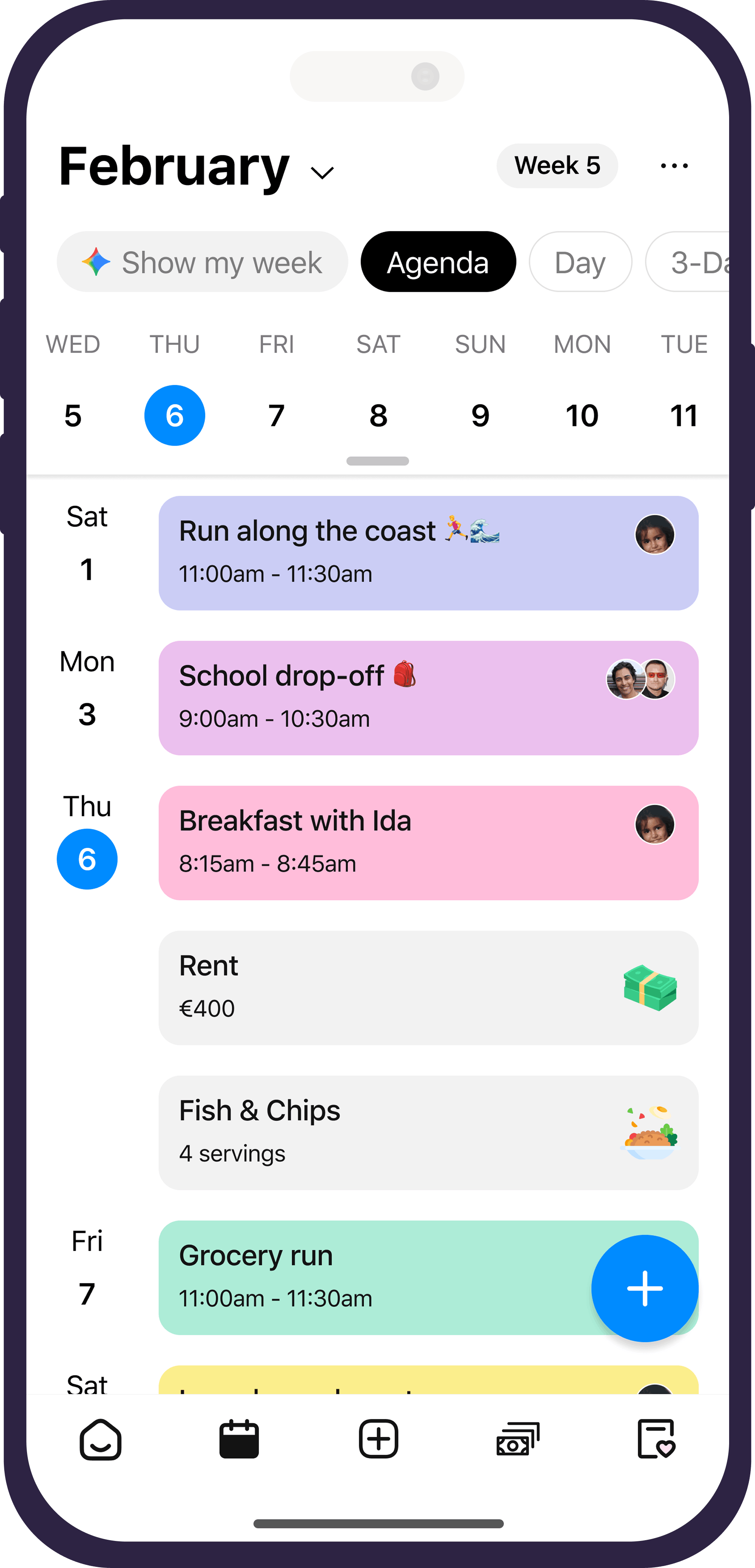
Open the Calendar
Open Famnest and go to the Calendar.
-
2
Open calendar settings
Tap the three dots in the top-right corner.
-
3
Find Synchronization
Scroll down until you see the Synchronization section.
-
4
Select Device Calendar
Tap Device Calendar.
-
5
Allow calendar access
If prompted, allow Famnest to access the calendars on your device.
-
6
Choose your calendars
Select the device calendars you want to make available in Famnest.
-
7
Wait for synchronization
Give Famnest a moment to connect and synchronize your selected calendars.
-
8
You're connected
Your selected device calendars will now be available inside Famnest.
CALENDAR PERMISSIONS
Not seeing your device calendars?
Make sure Famnest has permission to access your calendar. You can check your device settings and enable calendar access for Famnest, then return to the app and try again.
HAVE AN IDEA?
Help us improve the Famnest calendar
Have an idea for how we can make the calendar even better? Be sure to join the conversation on our
Famnest Reddit
and share your feedback with us.