Help Center β€Ί Famnest basics
Premium feature

How to connect Google Calendar to Famnest

Connect your Google Calendar to Famnest so your events and family plans can live together in one place.

BEFORE YOU START

You need Famnest Premium

Google Calendar sync is a Premium feature. Make sure you have Famnest Premium or an active Premium trial before getting started.

HOW TO CONNECT GOOGLE CALENDAR

Connect your calendar

Follow these steps inside the Famnest app.

  1. 1
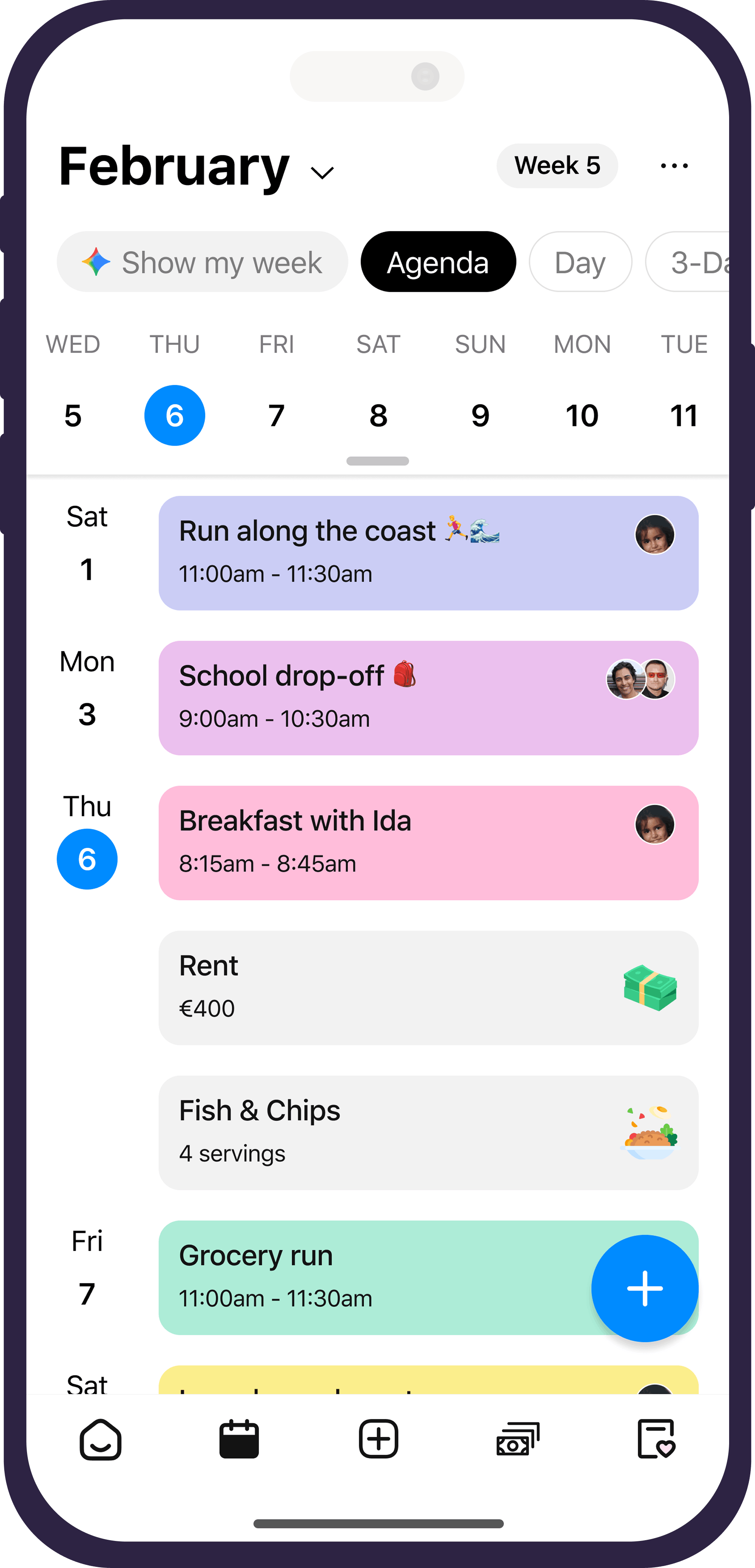
    Open the Calendar

    Open Famnest and go to the Calendar.

  2. 2
    Open calendar settings

    Tap the three dots in the top-right corner.

  3. 3
    Find Synchronization

    Scroll down until you see the Synchronization section.

  4. 4
    Select Google Calendar

    Tap Google Calendar.

  5. 5
    Press Continue

    Tap Continue to start connecting your Google account.

  6. 6
    Choose your Google account

    Select the Google account you want to connect and approve the requested permissions.

  7. 7
    Wait for it to connect

    Give Famnest a moment to connect and synchronize your calendar.

  8. 8
    You're connected

    Your Google Calendar will now be available inside Famnest.

MULTIPLE ACCOUNTS

Want to connect another Google account?

Simply repeat the same steps for each additional Google account you want to connect.

GIVE FEEDBACK

Was this resource helpful?

Famnest
Famnest
β˜…β˜…β˜…β˜…β˜… 4.7
Get App